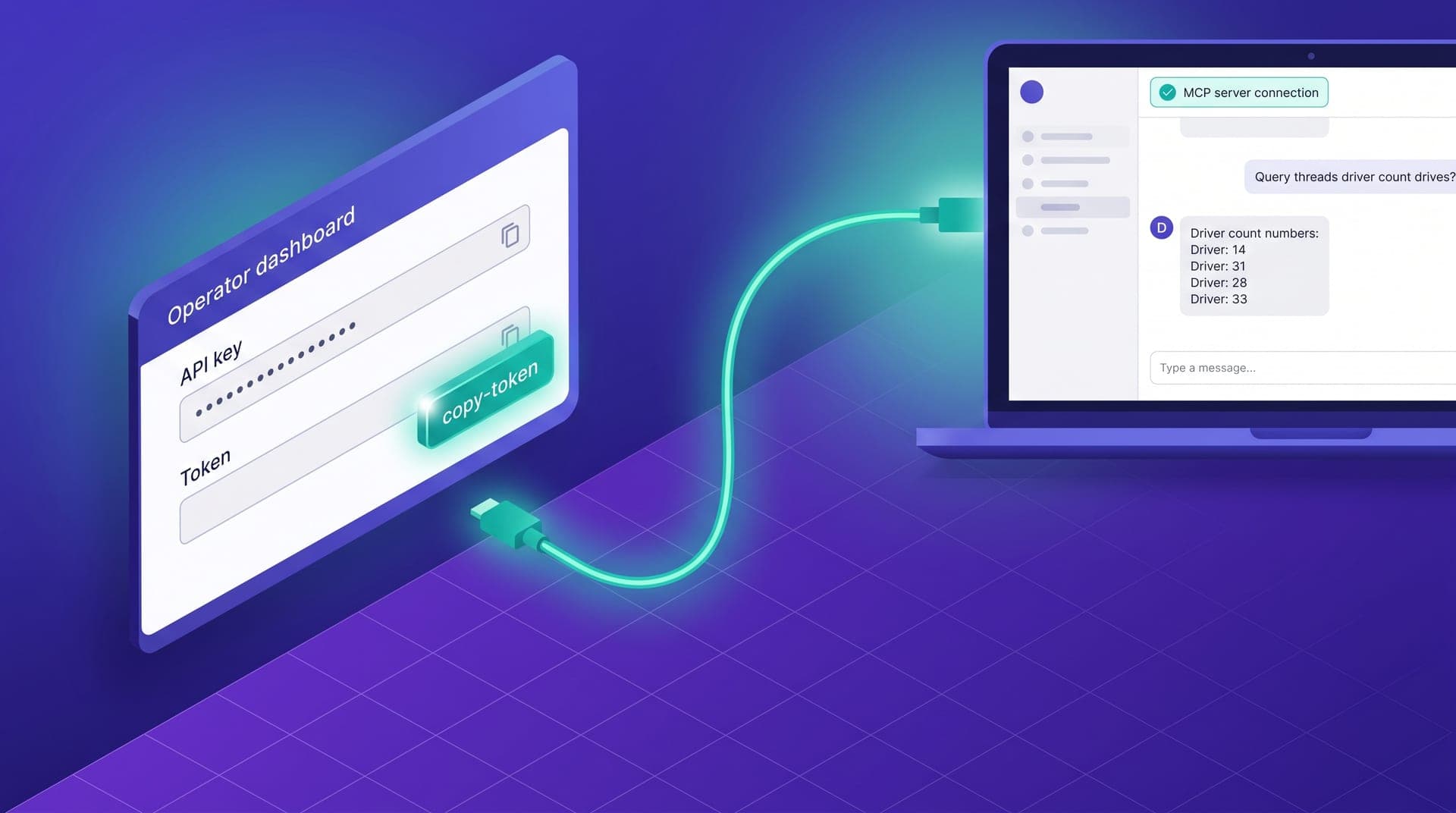
Connecting Claude Desktop or the ChatGPT plugin to Cabgo's MCP server takes three steps: get the authentication token from the operator panel, declare the server in the agent client's configuration file, and make the first call that confirms the channel is active. The sequence isn't long, but there are three points where operators get stuck longer than necessary: the exact format of the configuration block, the error that appears when the token is pasted with an extra space, and the specific query that distinguishes between 'the server responds' and 'the server responds with my operation's data.' This article covers those three points with the detail that isn't in generic MCP protocol documentation.
This article is written for the operator who has the Cabgo panel running, has seen in the blog or documentation that an MCP server is available, and wants to make the first connection without the technical setup taking more than an afternoon. It assumes no prior experience with MCP or API configuration: it assumes you know how to use Claude Desktop or ChatGPT as a chat client and that you have access to the operator panel. By the end of the guide, the agent will have an active connection to the server and the minimum context in the system instructions so that the first working session already returns operation-specific responses — not generic answers that any assistant could give without access to your real data.
Why 'technically connected' and 'useful from the first shift' are different states
Cabgo's MCP server is built to accept connections from any protocol-compatible client. In theory, following Claude Desktop's generic configuration instructions or ChatGPT's plugin installation tutorial is enough to get the channel active. In practice, 'active' and 'useful' are two different states. An active channel means the agent can invoke server tools and the server responds. A useful channel means the responses the agent returns are specific to the operator's operation: they include data from the correct tenant, interpret metrics with the real parameters of that specific market, and use the same internal names the team uses for zones, drivers, and configurations. Reaching the first state takes fifteen minutes. Reaching the second also requires a minimum of system instructions configuration that turns generic access into contextualized access.
The reason many operators stay in the first state after initial setup is that the technical connection process is well documented, but the next step doesn't appear in any generic guide because it varies by operation. The minimum system instructions that make the agent useful for an operation with 40 drivers in a tourist city differ from one with 150 in an industrial city with two active verticals. The good news is that the minimum to get started is small: four elements in fewer than ten lines, representing under ten minutes of additional work after the channel is active.
The authentication token: where to find it and exactly what it grants
The operator's authentication token is available in the Cabgo panel, in the integrations or API configuration section — the exact section name depends on the panel version. It's a fixed-length alphanumeric string that functions as the operation's identity in every call to the MCP server. Every time the agent invokes a tool — querying active drivers, reviewing trip history, creating a promotional coupon — that token travels in the request header so the server knows which operation the query belongs to and which tenants it has permission to work with.
Two things about the token worth understanding before configuring it. First: the token authenticates the operation, not an individual person. If three team members use the same token from their own agent clients, the server identifies all of them as the same operation — with access to the same tenants and with all calls logged under the same cabgo_my_mcp_usage history. There's no automatic mechanism that distinguishes who made which query unless each user includes that explicitly in their prompts. Second: the token has bounded permissions by design. It allows management operations — reading and modifying operation data — but it doesn't grant access to account configuration, billing, or platform administration functions. Sharing it with the shift coordinator for agent use doesn't give them access to sensitive configuration.
Configuring Claude Desktop: the config file and the step most people skip
Claude Desktop reads the list of available MCP servers from a JSON configuration file stored locally on the machine. When the operator adds Cabgo's server block to that file, Claude Desktop loads the server's tools automatically at the next startup and they appear available during the chat session. Cabgo publishes the exact configuration block ready to copy in the integrations section of the panel — with the token field clearly marked as a placeholder. The operator doesn't need to write it manually: paste the block into the correct location in the configuration file, replace the placeholder with the token from the previous step, and restart Claude Desktop.
The step that gets skipped most often — and that most frequently causes Claude Desktop to not load the server without a clear error message — is verifying that the configuration file is well-formed after pasting the block. A JSON file with a misplaced comma or an unclosed pair of quotes causes the client to silently ignore the server block. The most direct check is to open the file in any text editor and confirm that every opening brace has a corresponding closing brace and there are no trailing commas before a closing bracket. If the file already has another MCP server configured, the Cabgo block is added as an additional entry within the same object — not as a new file or by replacing the existing configuration.
Configuring the ChatGPT plugin: the three differences that affect daily use
In ChatGPT, the operator adds the MCP server from the account settings interface — not from a local file. The process varies depending on account type and platform version, but the required information is the same: Cabgo's server URL and the authentication token. Cabgo publishes that information in the same panel section as the other integration configuration data. Once added, the plugin becomes available in that account's chat sessions.
Three differences between Claude Desktop and ChatGPT that affect how the team works with the agent once the channel is active. The first is context across sessions: Claude Desktop maintains conversation history while the window is open, enabling long sessions with accumulated context; ChatGPT resets context when starting a new conversation, so each session begins without memory of the previous one. The second is system instruction propagation: in Claude Desktop they're configured at the client level and load automatically every session; in ChatGPT they're tied to the individual user's profile, meaning two team members with separate accounts have separate instructions — or none at all if neither configured theirs. The third is tool visibility: Claude Desktop explicitly shows which server tools are loaded; ChatGPT integrates the plugin's tools without listing them visibly, which can make it less clear to the user what they can ask the agent to do.
The first call that confirms the channel is working
Once Claude Desktop has restarted or the ChatGPT plugin is active, the most direct check isn't exploring the available tools menu — it's making a real query. A short prompt like 'How many drivers do I have active right now?' causes the agent to invoke the server's status tool and return the current count. If the response includes a number that matches the operation's reality, the channel is working and the token is valid. If the response is an error or returns unexpected data, there are four situations worth checking in this order.
- **Driver count consistent with operational reality**: channel active, token correct, default tenant correct — connection is complete and the next step is configuring system instructions
- **Authentication error (401 or equivalent)**: the token has a formatting problem — most commonly an extra space at the start or end of the string when pasting, or an incomplete copy; regenerating it from the panel and pasting again fixes 90% of cases
- **Zero or empty list without an error**: the server is responding but the token's default tenant may not match the operation's active tenant — specify the tenantId explicitly in the next prompt to confirm whether that's the issue
- **Connection error or timeout**: server configuration problem — verify that the configuration block is well-formed and that the server URL matches exactly what Cabgo publishes in the integrations section of the panel
The minimum system instructions to make the agent useful from the first session
Once the first call confirms the channel is working, the step that determines whether the agent is useful from the first shift is the context in the system instructions. Without system instructions, the agent has access to server data but no frame for interpreting what a number means in that specific operation's context. If the server returns that availability in the north zone is 45%, the agent doesn't know whether that's normal for that hour or a warning signal. If the operator asks about their 'Central Zone' and the server uses a different technical identifier, the agent doesn't connect the two names and the response is ambiguous. Both frictions disappear with four elements in the system instructions.
The first element is the operation's primary tenantId: a single line that prevents server calls from defaulting to the token's default tenant when the operator doesn't specify it explicitly in the prompt. The second is the names of the main zones — the two or three the team mentions most often — with their mapping to the server's technical identifier. The third is the availability range the operation considers normal during peak and off-peak hours: without that reference point the agent treats any variation as potentially significant and the operator has to judge every response without context. The fourth is the escalation criterion: what type of situation should prompt the agent to suggest going to platform support instead of continuing the diagnosis on its own. Those four elements, in fewer than ten lines total, are the difference between a connected agent and one the team actually uses during the shift.
The first connection took me twenty minutes. The problem wasn't the token or the configuration file — it was that the agent's first responses were correct but generic: it gave me server data I didn't recognize as my own because I hadn't loaded the tenantId into the system instructions. When I added it, the next query returned exactly what I expected to see.
The connection between the agent client and Cabgo's MCP server isn't the step that determines whether the agent will be useful in daily operations — it's the minimum condition to get to that point. What determines whether the agent produces results the team actually uses is the context loaded into the system instructions during that same setup afternoon. A technically active channel without operational context is data access without the frame that gives it meaning: the agent responds, the server responds, but the responses don't anchor to the specific reality of that operation — its zones, its drivers, its own normal operating parameters. The four elements described — tenantId, zones, normal thresholds, escalation criteria — are enough so that the first week of work already produces specific diagnostics rather than generic answers any assistant without real data access could give about any mobility operation.
If you already have the Cabgo panel running, the first connection will take you an afternoon. The result at the end of that time isn't an agent that knows everything about your operation — it's one that has real access to your data and the minimum frame for its responses to be specific rather than generic. From there, the context layers that make the agent more useful over time build week by week: secondary zones, recurring incident patterns, internal team conventions. But the starting point matters: arriving well-configured at the first week is the difference between a team that adopts the agent as a real operational tool and one that installs it, tries two context-free queries, and never opens it again.